

Yes, you can connect TradingView to Binance Futures for manual chart-based trading, and yes, you can automate it. TradingView’s native integration covers charting, market data, and click-to-trade execution. Full automated execution, where alerts fire orders without you touching a mouse, requires routing TradingView alerts through a webhook to an automation platform like Tickerly. Either path demands paper trading and risk controls before real capital goes anywhere near a live order.
TL;DR:
Connecting TradingView to Binance Futures requires careful permission settings, with trading access enabled but withdrawal rights disabled to ensure safety.
TradingView acts as an analytical interface, not a trade executor, so automated trading relies on external platforms to route signals through webhooks to Binance’s API.
Traders must test alerts and automation in paper mode or sandbox environments, setting risk limits like position caps and reduce-only orders before going live.
Binance derivatives metrics within TradingView help filter signals through price, funding rates, and large trader exposure to improve entry accuracy.
Most errors stem from permission issues, symbol mismatches, or margin limits, highlighting the importance of proper setup and ongoing monitoring to prevent mistakes.
Table of Contents
-
What TradingView’s Connection Actually Does (and Doesn’t Do)
-
Automate TradingView Alerts Into Binance Futures Orders With Tickerly
How to Connect TradingView to Binance Futures
Linking your account takes minutes, but the permissions you grant determine whether the setup is safe or reckless. Here’s the sequence.
-
Open a Supercharts window and click the “Trading Panel” button at the bottom of the screen, then select Binance from the broker list, or click “see all brokers” if it’s not pinned to your view.
-
Authenticate through Binance’s connect flow. You’ll be redirected to grant TradingView access. Binance’s own support documentation walks through this exact login and authorization sequence.
-
Approve the right permissions only. Trading access should be enabled; withdrawal access should stay disabled, always.
-
Search for your futures instrument. Binance Futures pairs and perpetual contracts appear directly in the TradingView symbol search once the connection is live.
-
Place a manual trade from the chart using the order ticket, or drag chart trading lines to set entry, stop, and target levels visually.
Before any of this works, a short checklist needs to be handled on Binance’s side:
-
Your Binance Futures account is activated and separate from your spot wallet.
-
KYC verification is complete (Binance requires this for futures access).
-
You’ve selected a margin mode, cross or isolated, before your first trade.
Order types matter here too. A market order fills instantly at the current price; a limit order waits for your specified price; both are available directly from the TradingView order ticket once the broker connection is active.
What TradingView’s Connection Actually Does (and Doesn’t Do)
TradingView is fundamentally an analytical and execution interface, not a trade processing engine. TradingView’s support documentation is explicit about this: the platform gives you the order ticket, chart trading lines, and Paper Trading mode, but the broker connection handles the actual order routing and fills.
For Binance Futures specifically, that connection is broad. TradingView’s announcement covering the integration notes it exposes close to 200 crypto perpetual futures pairs, along with derivative metrics that don’t exist on a standard spot chart. Inside Supercharts, you get:
-
Live perpetual futures pricing across nearly the full Binance Futures instrument list.
-
Mark price and funding-adjacent derivative data layered onto your existing indicators.
-
Manual execution and Paper Trading, both running through the same broker connection.
What it doesn’t do is run persistent, unattended bots. TradingView won’t monitor your Pine Script strategy overnight and fire trades while you sleep, and it isn’t built to manage multiple simultaneous strategies with independent risk parameters during a volatility spike. That gap is exactly why an automation layer exists.
Turning TradingView Alerts Into Live Binance Futures Orders
Automation works on a simple chain: your Pine Script strategy fires an alert, TradingView sends that alert as a webhook, and an automation platform like TP Scanner – Analyse tes trades avec l’IA translates the payload into an authenticated order on Binance’s API. The alert itself is just structured text, usually containing the symbol, direction, and size, sometimes with extra instructions like a stop distance or a strategy tag.
Getting from alert to filled order involves a few consistent steps:
-
Build your alert condition in TradingView, based on a Pine Script strategy or a custom indicator trigger.
-
Format the alert message with the fields your automation platform needs: symbol, side, order size, and any custom parameters like reduce-only flags.
-
Point the webhook URL to your automation platform’s intake endpoint instead of (or alongside) a phone or email notification.
-
Let the platform handle translation and execution. This is where TradingView alert routing for automated bots comes into play, converting your raw alert into a properly signed API call.
-
Monitor fills and logs to confirm the order matched your intended size, side, and instrument.
A dedicated automation platform earns its place here because it handles what TradingView never claimed to: authentication with Binance’s API, position sizing logic, take-profit and stop-loss attachment, and centralized logging across every strategy you’re running at once. It also handles rate limits and webhook retries gracefully, something a raw webhook receiver often doesn’t do well under load. If you’re running strategies on both sides of the market, hedge mode alert configuration becomes relevant fast, since Binance Futures treats long and short positions on the same symbol differently depending on your account mode.
Testing and Risk Controls Before You Go Live
Skipping this step is how traders learn expensive lessons. TradingView’s own guidance recommends Paper Trading as the first stop for any new strategy, and that advice applies doubly once webhooks and automation enter the picture.
Run your alerts through Paper Trading first, then through your automation platform’s sandbox or test mode, before a single dollar of real margin is at risk. Once that pipeline checks out, move to live trading with the smallest possible position size and isolated margin, so a single bad fill doesn’t cascade into the rest of your account.
On the automation side, enforce these controls without exception:
-
A per-trade notional cap to limit position size
-
Reduce-only orders enabled for exits to prevent unintended position openings
-
A maximum open position limit across all concurrent strategies
-
A circuit-breaker to pause execution after consecutive order failures
Audit logs matter as much as the trade itself. Confirm every alert was received, timestamp it against the fill, and set up error notifications so a failed API call doesn’t sit unnoticed for hours. Latency between alert and fill, particularly during high volatility, is worth tracking over time rather than assuming it’s constant.
Reading Binance Derivative Metrics Inside TradingView
Price alone is a noisy signal on futures markets, and Binance Futures data inside TradingView gives you a second layer to filter against. TradingView added these metrics under Indicators, then Fundamentals, then Derivatives, pulling mark price, top-traders exposure, and funding-related data directly into Supercharts.
A few practical uses:
-
Mark price versus index price divergence can flag when a perpetual is trading rich or cheap relative to spot, a common precursor to liquidation cascades.
-
Top-traders exposure shows whether large accounts are net long or short, useful context before trusting a breakout.
-
Funding-rate pressure often precedes a squeeze in the opposite direction once it gets extreme.
The strongest signal filters require both conditions to align, not either one alone: a price breakout confirmed by funding-rate direction is a stronger trigger than price movement by itself.
Pro Tip: Add a funding-rate threshold as a second condition in your alert logic. It’s one of the simplest ways to cut down on whipsaw entries during choppy, low-conviction sessions.
Fixing Common Connection and Automation Errors
Most setup problems trace back to permissions, symbols, or margin, not the strategy logic itself.
-
Connect flow fails or hangs: clear your browser session, disable pop-up blockers, and re-authenticate from scratch.
-
Symbol mismatch between platforms: confirm the exact pair name matches on both ends. The Binance data API lists canonical symbol formats if you’re unsure.
-
API rejects orders: check that futures trading permission is enabled on your key and withdrawal permission is disabled, then confirm available margin covers the position size.
Why Separating Analysis From Execution Changes Everything
TradingView tells you what and when. An automation platform handles how, without hesitation or a second-guessed exit. That split removes the moment where discipline usually breaks: the pause between seeing a signal and clicking the order button. Strategies built for that separation from day one tend to survive volatility better than ones improvised live.— Jay
Automate TradingView Alerts Into Binance Futures Orders With Tickerly
You’ve seen the manual path and the automation path. Automation platforms take your TradingView alerts, whether from a single strategy or many running in parallel, and turn them into live Binance Futures orders with execution speed that a manually watched chart simply can’t match.
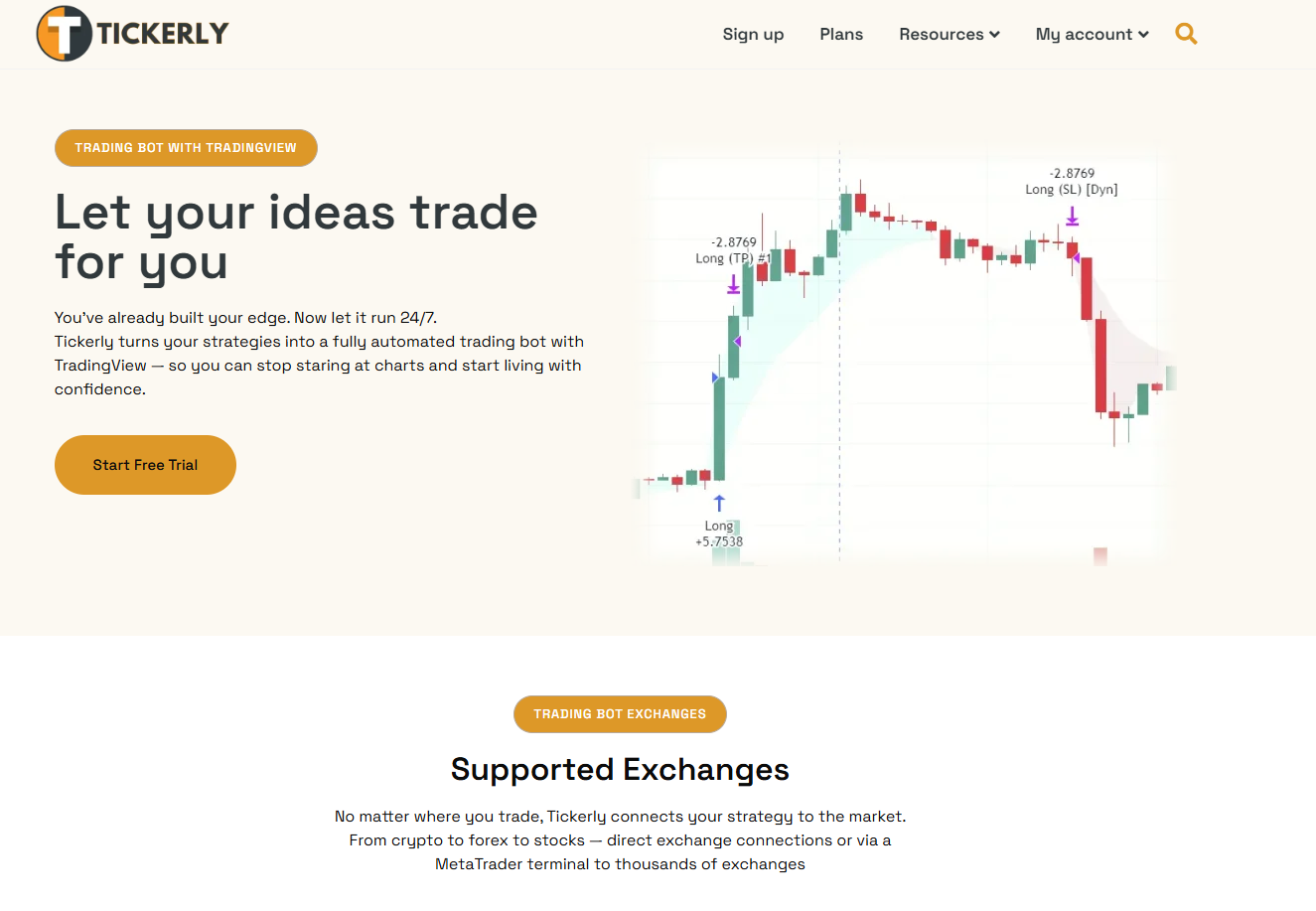
Such platforms handle webhook intake, authenticated order routing to Binance’s API, hedge-mode alert support, and multi-strategy handling under one dashboard, with reduce-only flags and position caps built into the risk controls. If you’re ready to move past manual clicking, the step-by-step Tickerly setup guide walks through connecting your first alert, and the strategy automation overview breaks down exactly how an alert becomes a filled order. Start with a free trial, run your strategy through paper mode first, and scale from there once the pipeline proves itself.
This article is general information, not a substitute for advice from a qualified financial advisor. Consult a qualified financial professional about your own circumstances before acting on anything here.
Sources
FAQ
Can TradingView show futures?
Yes, TradingView displays futures charts and pricing for numerous exchanges, including nearly 200 Binance Futures perpetual pairs with dedicated derivative metrics like mark price and funding data.
Does Binance have futures trading?
Yes, Binance Futures offers perpetual and dated futures contracts with leverage, separate from Binance’s spot market, and it connects directly to TradingView for charting and execution.
Is Binance available in TradingView?
Yes, Binance is listed as a broker inside TradingView’s Trading Panel, letting you authenticate your account and trade Binance Futures pairs directly from the chart.
Can I trade futures on TradingView?
Yes, once your Binance account is connected, you can place manual futures trades using the order ticket or chart trading lines, and you can automate execution by routing alerts through a platform like Tickerly.
Do I need coding skills to automate TradingView alerts into Binance Futures orders?
No, platforms like Tickerly offer no-code setup, so Pine Script developers and non-developers alike can connect an alert’s webhook to live execution without writing custom integration code.
Recommended
This article was produced with Al assistance and reviewed for accuracy. It is provided for general information only and is not professional or financial advice.