

If you already use TrendSpider and want to move from alerts to automated trading with trendSpider trading bots, this post is for you.
I’ll walk you through the exact steps to turn TrendSpider Trading Bots into working TrendSpider automated trading connected to your exchange using Tickerly — with the JSON examples you can copy/paste, tips to avoid common pitfalls, and a quick testing checklist so you don’t accidentally send a live order before you’re ready.
Quick Overview — What Happens When You Automate
- You create a Trading Bot in TrendSpider and configure a Webhook URL + Webhook body.
- TrendSpider sends alert to the URL when the bot fires.
- Tickerly reads the alert message body and places the order on the exchange account you’ve connected to Tickerly.
Step 1 — Grab Your Tickerly Pointer for Your Exchange
Log into Tickerly → My Exchanges and copy the pointer for the exchange you’ll trade on.
That’s the identifier which tells Tickerly what exchange to place your orders at. You’ll paste into TrendSpider. Keep that tab open — you’ll need it in the next step.

Step 2 — Create the Correct Bot/Alert in TrendSpider
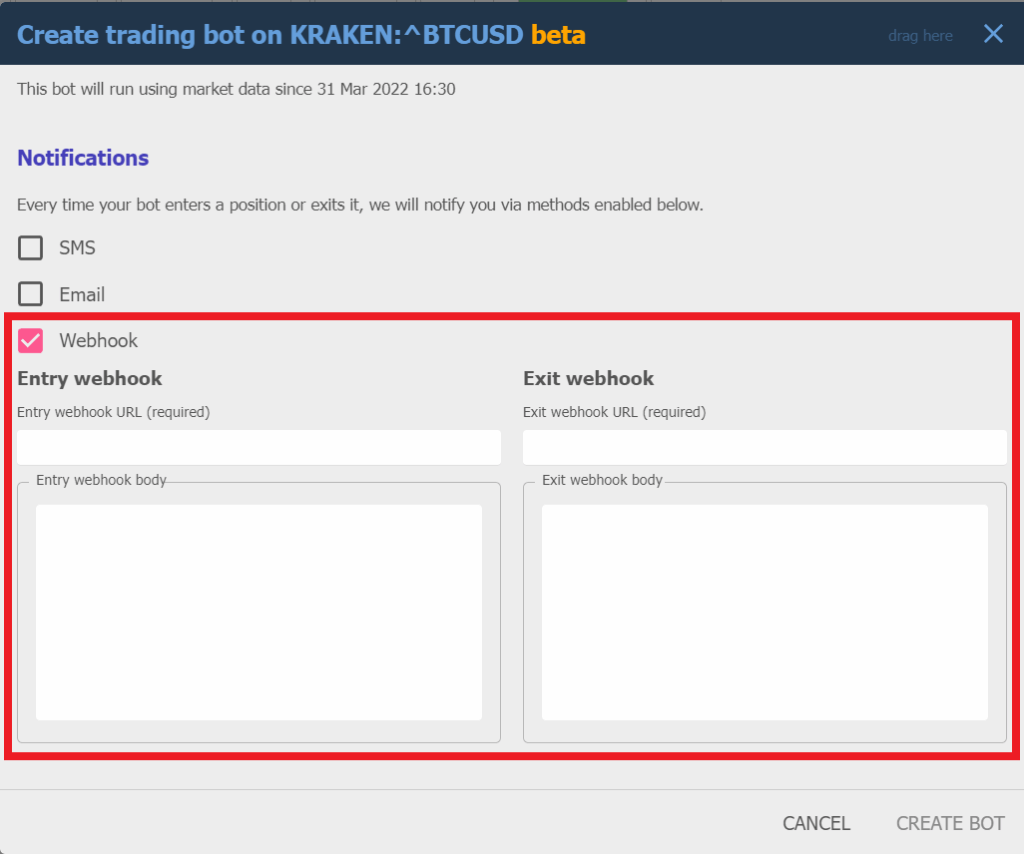
- If you use TrendSpider Trading Bots, open the bot and edit the Entry and Exit webhook settings.
- If you use a plain TrendSpider Alert, open the alert → action → choose Webhook.
⚠️ Important: TrendSpider treats long and short bots separately.
If you want both directions, create two separate strategies with enter long / exit long or enter short / exit short.
Step 3 — Paste the Tickerly URL into TrendSpider
- Webhook URL: paste the Tickerly webhook URL as both entry and exit webhook which is http://alerts.tickerly.net
Step 4 — Set entry and exit webhook bodies
Here are the four JSON templates you can drop into TrendSpider webhook bodies.
Change quantity and pointer to match your exchange and Tickerly settings.
The pointer ties entries and exits to the same logical bot/strategy in Tickerly.
Enter Long
{
  "ticker": "%bot_symbol%",
  "action": "buy",
  "prev_position": "flat",
  "quantity": "replace with order size",
  "pointer": "replace with pointer from my exchanges"
}

Exit long
{
"ticker": "%bot_symbol%",
"action": "sell",
"prev_position": "long",
"quantity": "replace with order size",
"pointer": "replace with pointer from my exchanges"
}Enter short
{
  "ticker": "%bot_symbol%",
  "action": "sell",
  "prev_position": "flat",
  "quantity": "replace with order size",
  "pointer": "replace with pointer from my exchanges"
}
Exit short
{
"ticker": "%bot_symbol%",
"action": "buy",
"prev_position": "short",
"quantity": "replace with order size",
"pointer": "replace with pointer from my exchanges"
}Example webhook body
So for example, if I have tradingbot for EURUSD, I want to trade 0.01 lot size and my exchange connection pointer is abc123, my entry alert would be :
{
  "ticker": "%bot_symbol%",
  "action": "buy",
  "prev_position": "flat",
  "quantity": "1000",
  "pointer": "abc123"
}
Step 5 — Activate your bot and enjoy Automated Trading with TrendSpider Trading Bots
Click the “Create bot” button and go are good to go. You bot will start trading on your selected exchange.
A few tips:
- Confirm the webhook body is valid JSON in TrendSpider (no trailing commas, no comments).
- Test with a very small
quantity(or a paper/test exchange if available). - Verify the order reached the exchange and behaved as expected.
- If webhook delivery fails, check the error message you will receive from Tickerly which will help you understand the issue
Final Words + Free Trial
That’s it — once you paste Tickerly’s webhook URL and a matching JSON body into TrendSpider’s Entry and Exit webhooks (remember separate flows for long/short), your TrendSpider trading bot can run hands-free.
👉 Want to test it yourself? Try Tickerly free for 30 days: copy the JSON above into TrendSpider, run one small test trade, and confirm everything logs and executes as expected.